Everybody has their own preference as to where they like their minimize, maximize and close buttons. These days some even prefer to remove some of these window controls as the way some desktop environments have been developed suggest you don’t really need them.
This post aims to show you how you can put them where YOU want them!
TL:DR …. One liner ….
If you are quite confident changing settings (and recovering if they go wrong), this is most likely the one liner you will need.
- change the order of minimize, maximize and clase to what you want.
- the colon represents the middle of the window
- : right corner
- left corner :
|
1 |
gsettings set org.gnome.desktop.wm.preferences button–layout ‘:minimize,maximize,close’ |
Update
I first wrote this post back in April 2012. It still gets a lot of views so I thought I should update it as there have been some changes since Ubuntu 12.04! If you are looking for the Ubuntu 12.04 (and lower) instructions please scroll down!
Moving window controls in Ubuntu 12.10 (and later)
Since Ubuntu 12.10, Dconf has been the preferred method of changing the settings related to these specific windows controls. So… what is Dconf you ask? In the words of Gnome…
“dconf is a low-level configuration system. Its main purpose is to provide a backend to GSettings on platforms that don’t already have configuration storage systems.”
Changing Gsettings via terminal
Firstly, open up a terminal, then type/copy the relevant command from below to change the settings. Obviously change the order of minimize,maximize,close to your desired order:
|
1 2 3 4 5 |
# move buttons to the right gsettings set org.gnome.desktop.wm.preferences button–layout ‘:minimize,maximize,close’ # move buttons to the left gsettings set org.gnome.desktop.wm.preferences button–layout ‘minimize,maximize,close:’ |
After pressing enter your changes should be applied… and you’re done!
The buttons didn’t change…
if for some reason it’s not done, you can also try these commands, they do the same thing but these are an override for gnome shell….
|
1 2 3 4 5 |
# move buttons to the right gsettings set org.gnome.shell.overrides button–layout ‘:minimize,maximize,close’ # move buttons to the left gsettings set org.gnome.shell.overrides button–layout ‘minimize,maximize,close:’ |
Changing Gsettings via GUI
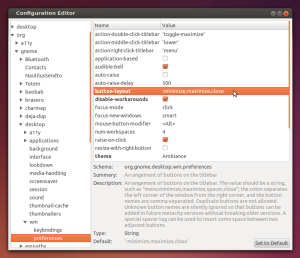 You will need Dconf-editor to change these settings graphically, type/copy the following command to install it (you may already have it installed):
|
1 |
sudo apt–get install dconf–tools |
Now open up dconf-editor through your apps menu or type/copy dconf-editor in your terminal.
In the directory tree on the left navigate through the following:
|
1 2 3 4 5 |
org └── gnome └── desktop └── wm └── preferences |
Now in the panel on the right, locate button_layout and click on the text in the value column.
Change the value from “close,maximize,minimize:” to “:minimize,maximize,close” (obviously without the quotes).
Press enter and the changes should be applied immediately.
The buttons didn’t change…
If nothing has happened, you may be using gnome shell, in which case navigate through the tree again to this destination:
|
1 2 3 4 |
org └── gnome └── shell └── overrides |
Again try changing the value from “close,maximize,minimize:” to “:minimize,maximize,close” and we should be done!
Old method of moving windows controls (Ubuntu 12.04 and lower)
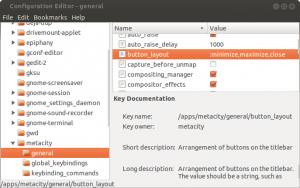 The old method uses gconf-editor.
I can’t find gconf-editor?
It may not be installed by default. If not open up a terminal and type/copy in…
|
1 |
sudo apt–get install gconf–editor |
Now open up gconf-editor through your apps menu or type/copy gconf-editor in your terminal.
In the directory tree on the left navigate through the following:
|
1 2 3 |
apps └── metacity └── general |
Now in the panel on the right, locate and double click on button_layout
Change the value from “close,maximize,minimize:” to “:minimize,maximize,close” (obviously without the quotes).
Click OK and Ubuntu should apply the changes immediately.
If you think you can do without the maximize button like me, try removing it from the line above and see how you get on!
Pingback: How to Change Ubuntu Window Icons (for Unity and Metacity)()